

How to Configure the PayPal Payment Gateway in Sive.Host PartnersHub
Objective
This guide explains how to configure the PayPal Payment Gateway in Sive.Host PartnersHub so that customers can securely pay for hosting services using their PayPal accounts or supported debit and credit cards.
Prerequisites
Before configuring PayPal, ensure that you have:
-
An active Sive.Host PartnersHub account.
-
Administrator access to your PartnersHub dashboard.
-
A verified PayPal Business Account.
-
Your PayPal API credentials (API Username, API Password, and API Signature).
-
Internet access.
Step 1: Open the Bank Transfer Payment Gateway
-
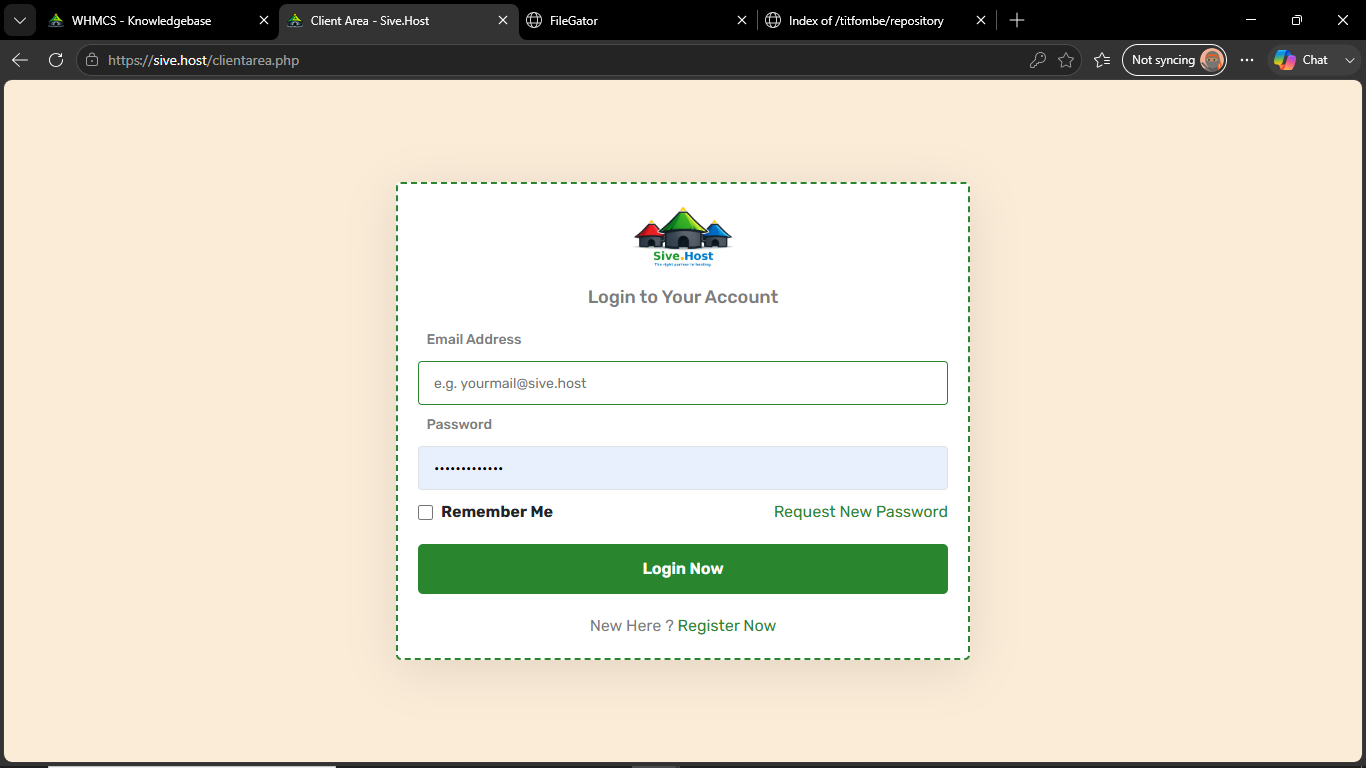
Log in to your Sive.Host Client Area.
-
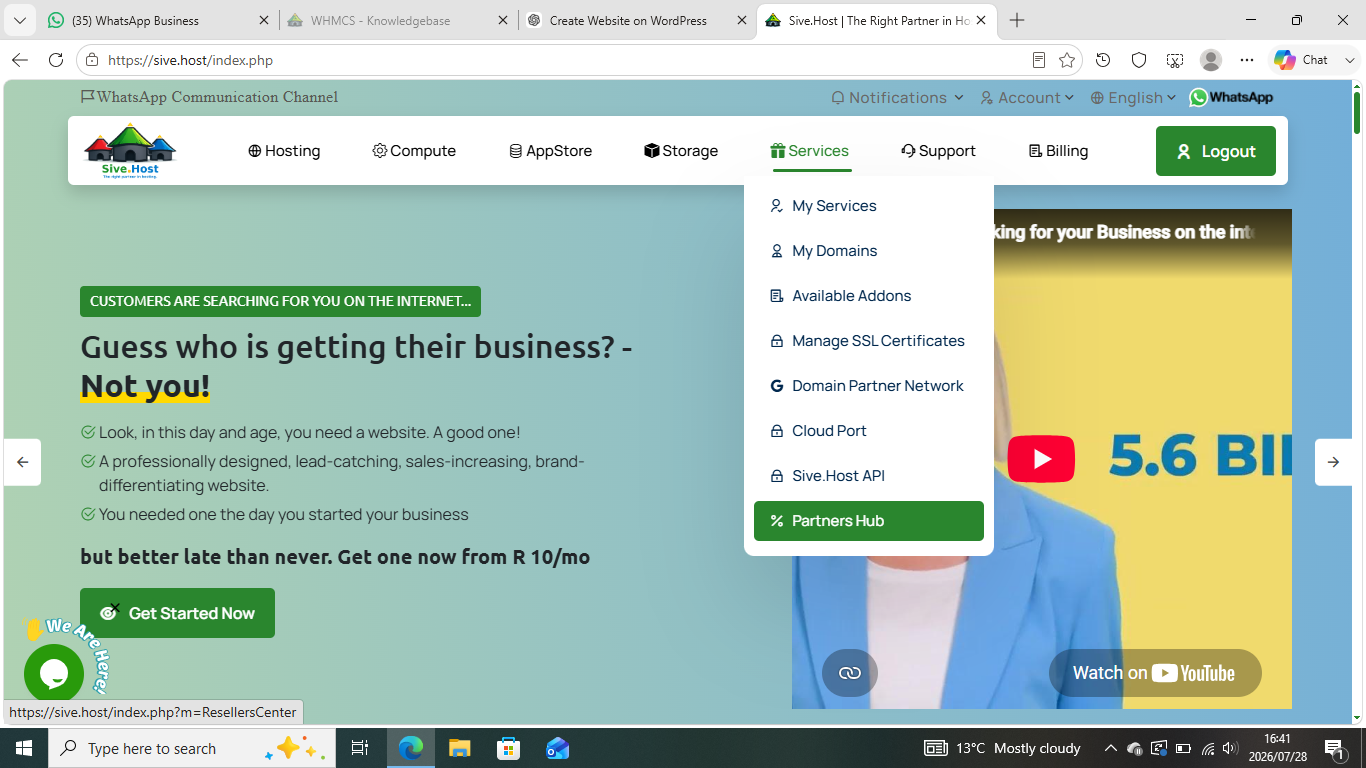
Open PartnersHub.
-
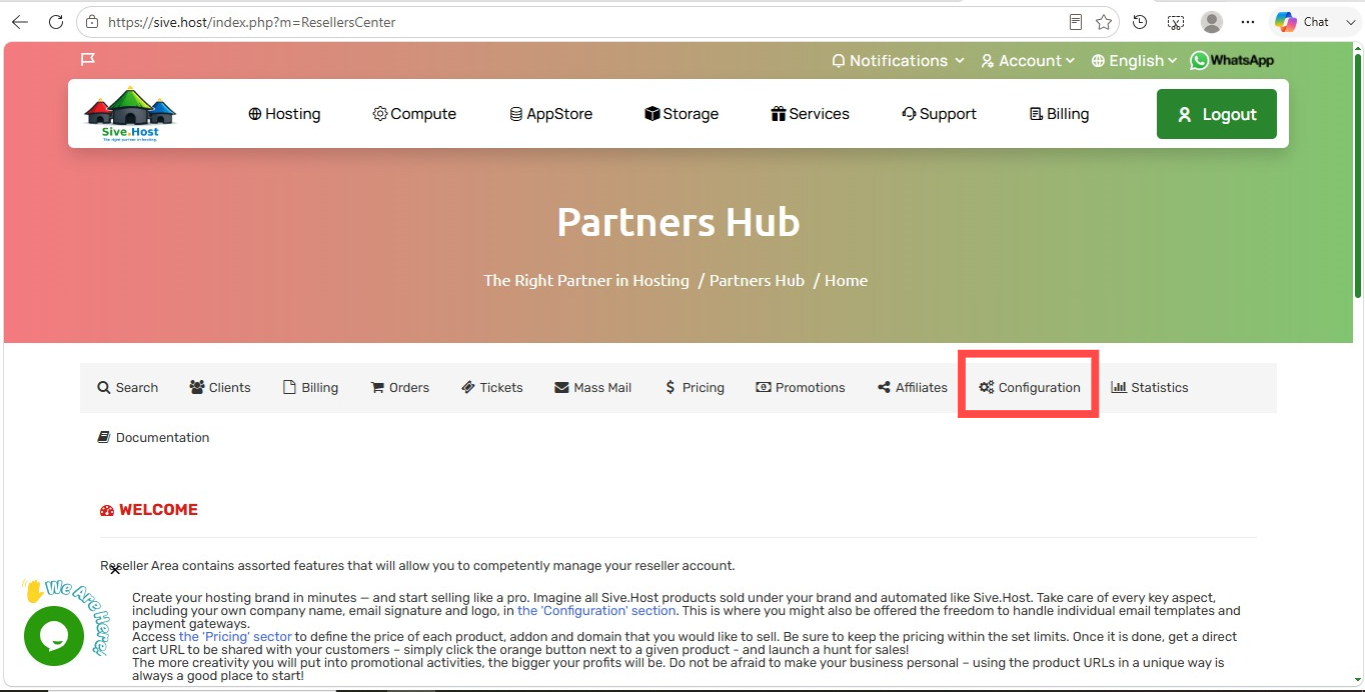
Navigate to Configuration.
-
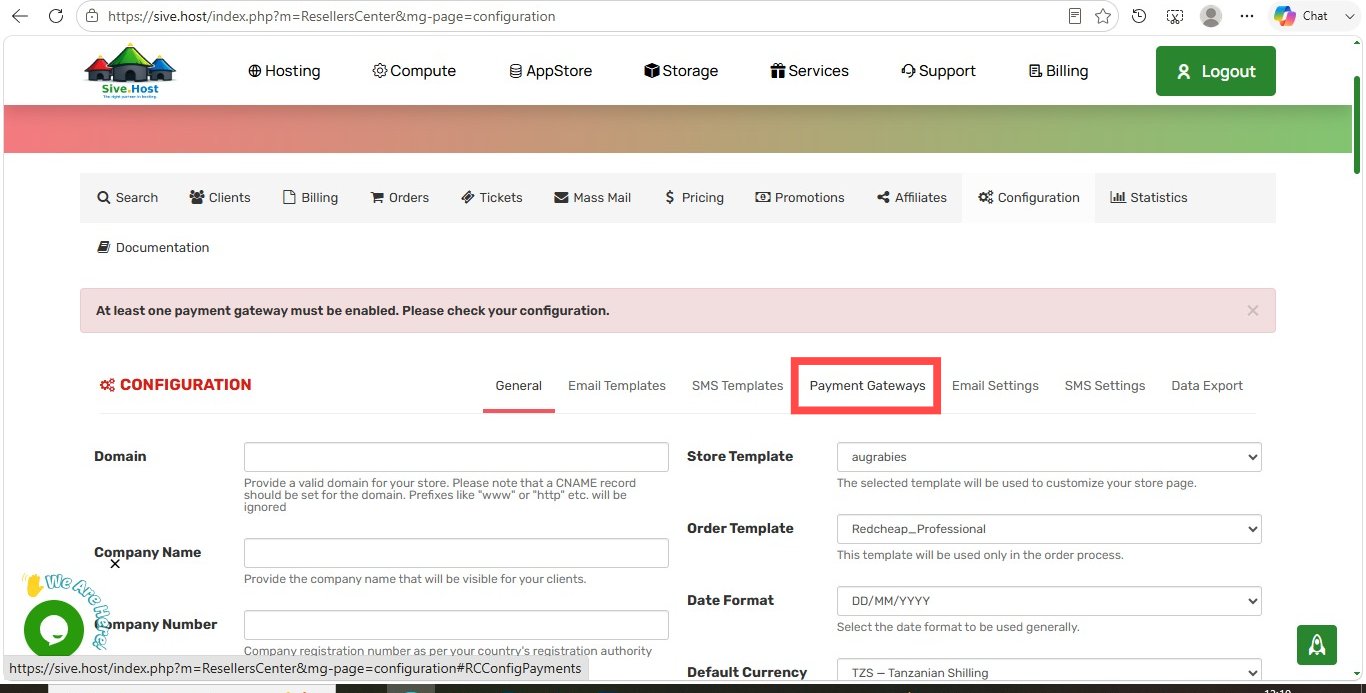
Select Payment Gateways.
-
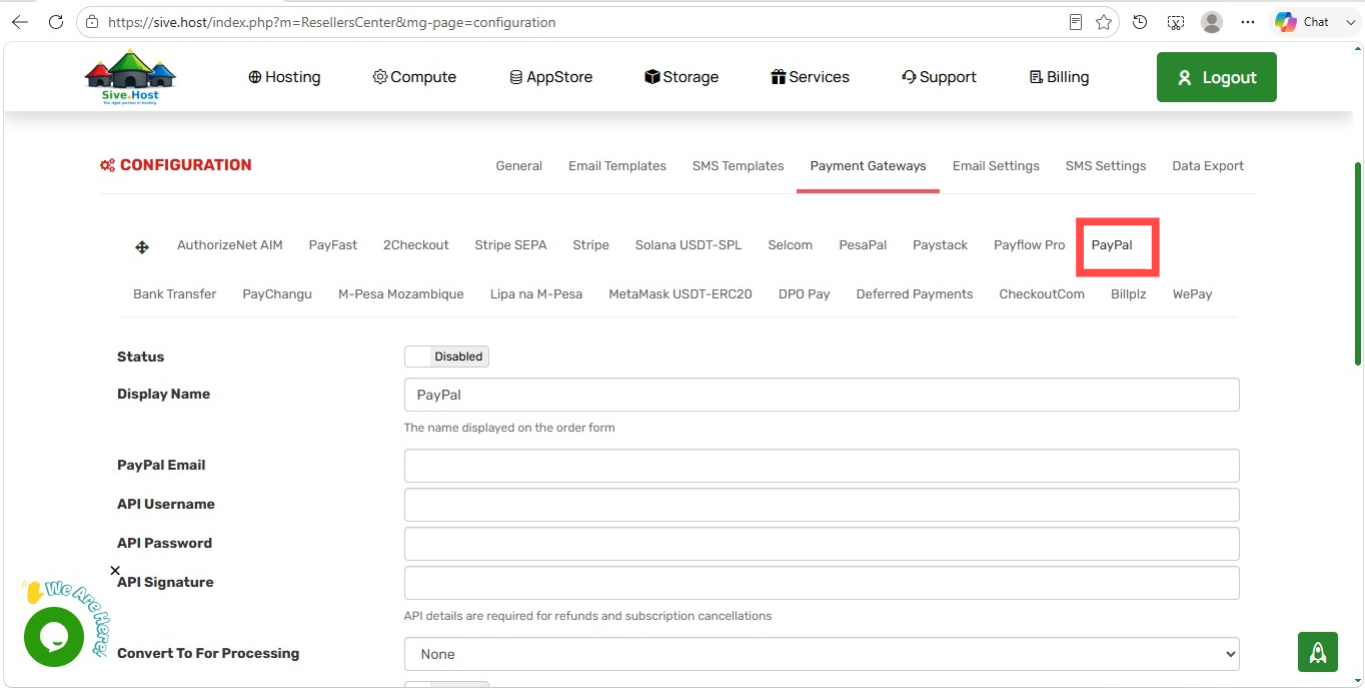
Select the PayPal tab.
Expected Result
The PayPal Payment Gateway Configuration page is displayed.
Step 3: Enable the PayPal Gateway
Locate the Status field.
Current value:
DisabledAction
-
Click Disabled.
-
Change the status to:
Enabled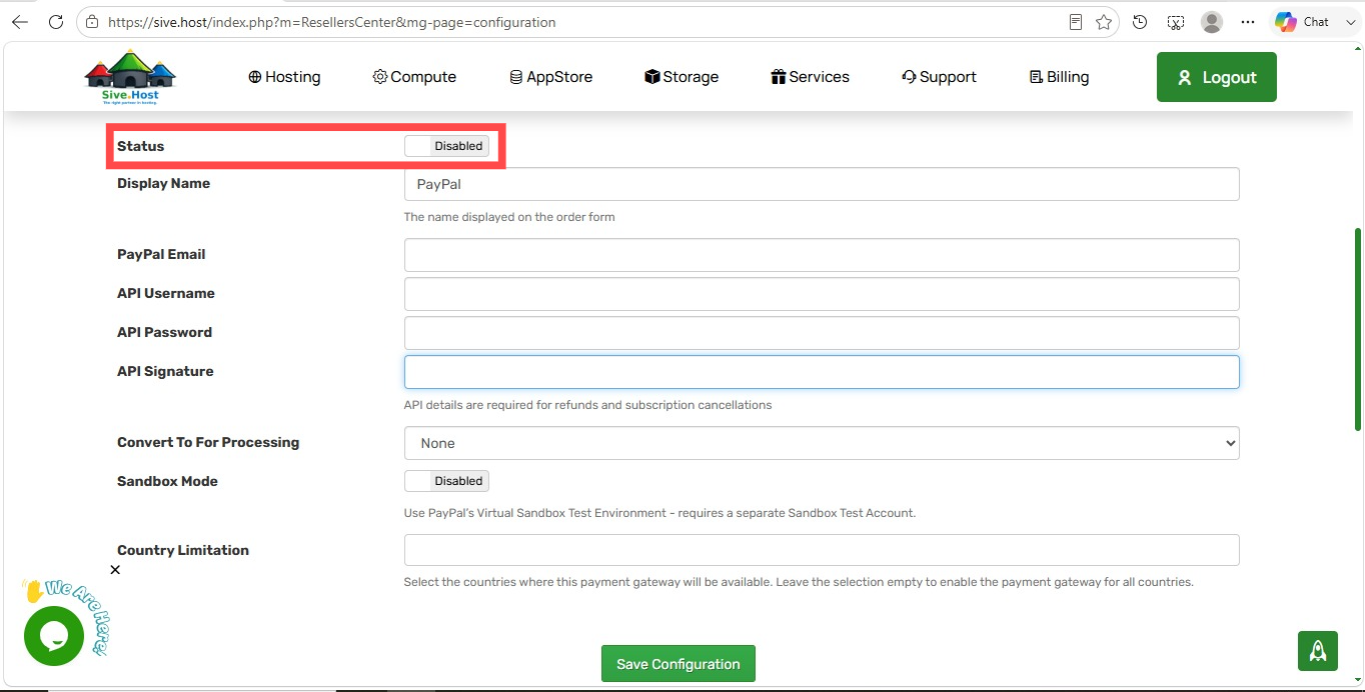
Purpose
Enabling the gateway allows customers to select PayPal during checkout.
Step 4: Configure the Display Name
Locate the field labelled Display Name.
Default value:
PayPalYou may:
-
Leave it as PayPal, or
-
Rename it to something more descriptive.
Example:
PayPal Secure Payments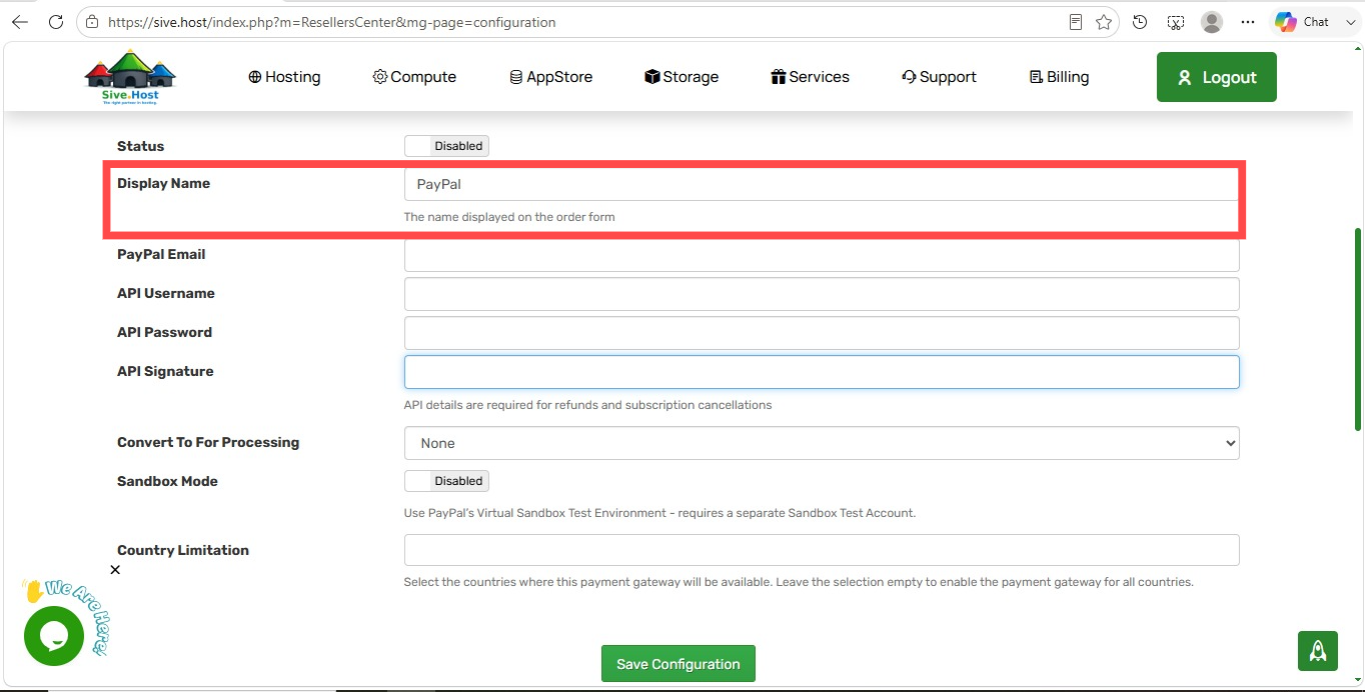
Purpose
This is the payment method name customers will see during checkout.
Step 5: Enter Your PayPal Email Address
Locate the PayPal Email field.
Enter the email address associated with your PayPal Business account.
Example:
payments@nfeconstruction.co.zaorbusiness@example.com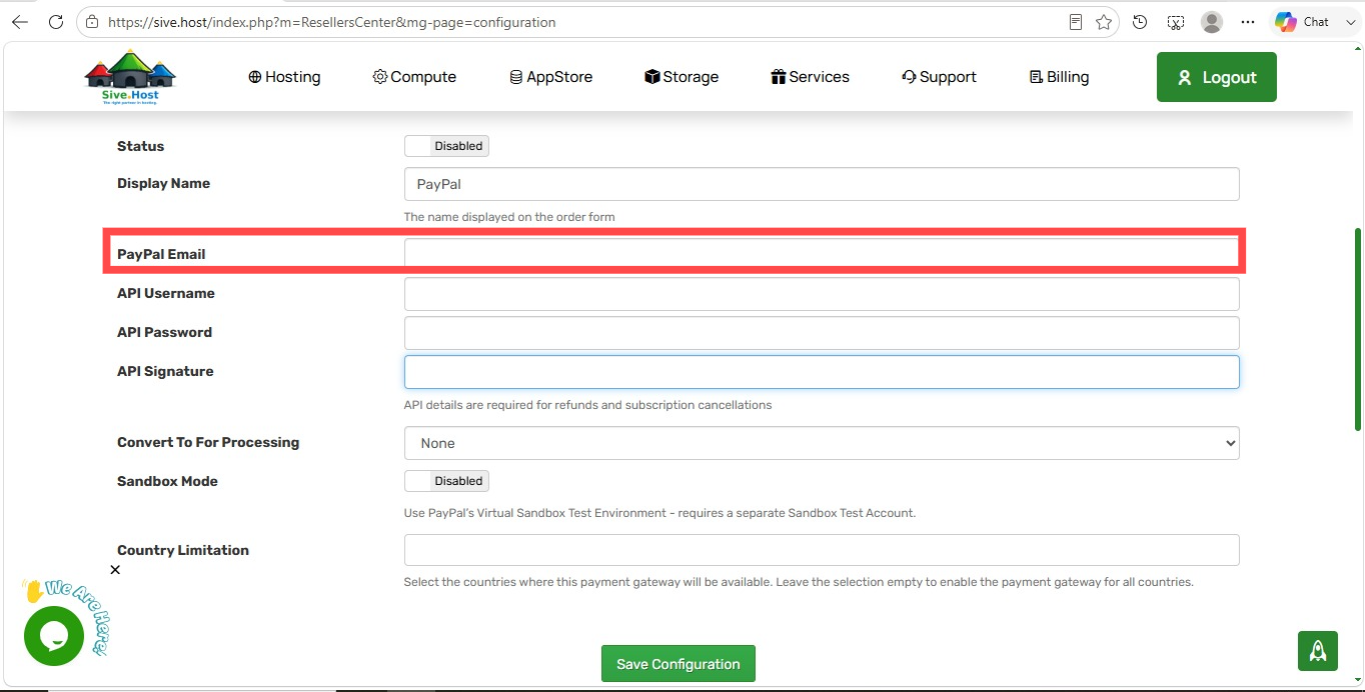
Purpose
This identifies the PayPal account that will receive customer payments.
Step 6: Enter the API Username
Locate the API Username field.
Paste the API Username obtained from your PayPal Business account.
Example:
api-username_example_api1.paypal.com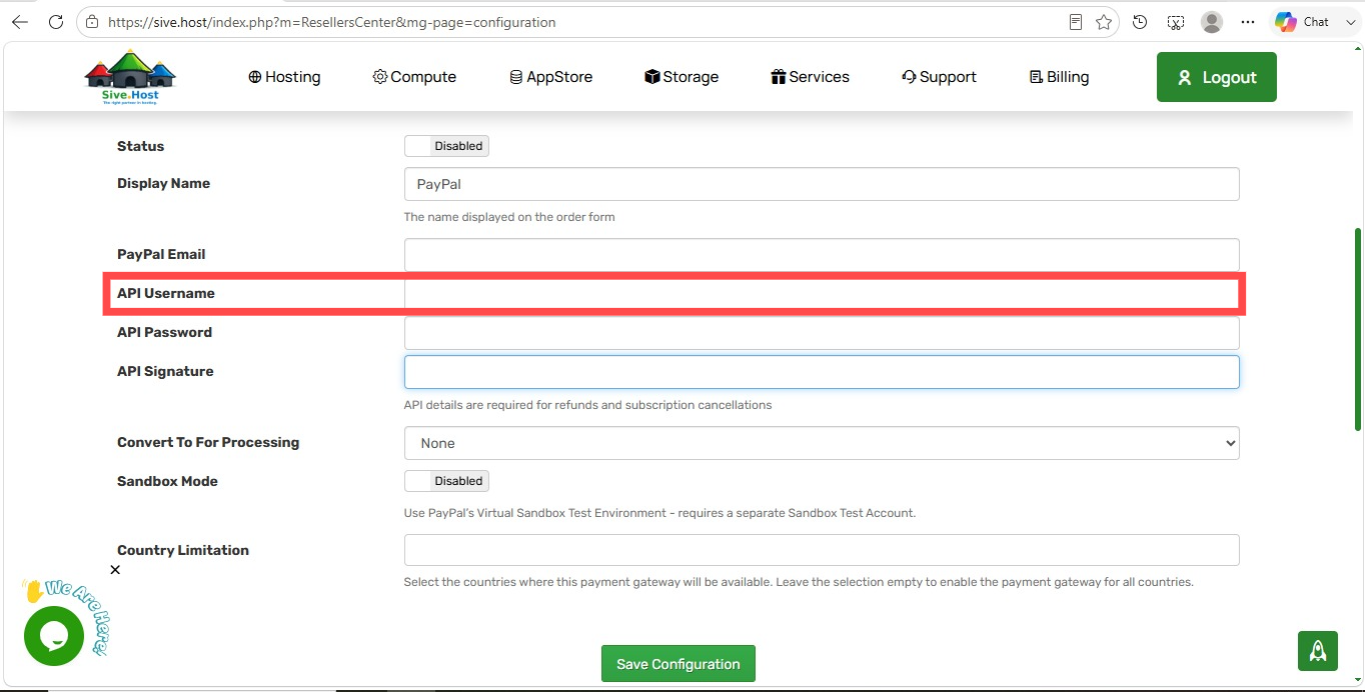
Purpose
The API Username allows PartnersHub to communicate securely with PayPal.
Step 7: Enter the API Password
Locate the API Password field.
Paste your PayPal API Password.
Example:
A7GH89LJK1234ABC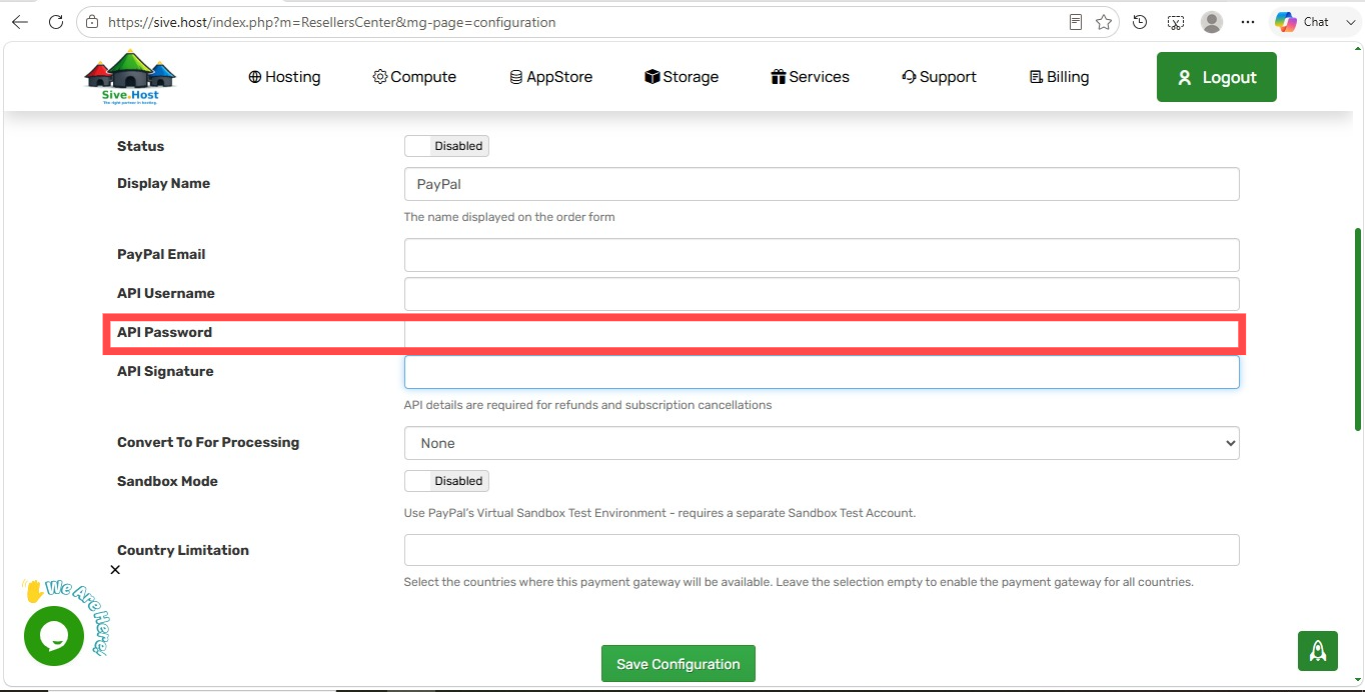
Purpose
This password authenticates requests between PartnersHub and PayPal.
Security Tip: Keep your API Password confidential. Do not share it publicly.
Step 8: Enter the API Signature
Locate the API Signature field.
Paste your PayPal API Signature.
Example:
AFcWxV21C7fd0v3bYYYRCpSSRl31Axxxxxxxxxxxxxxxx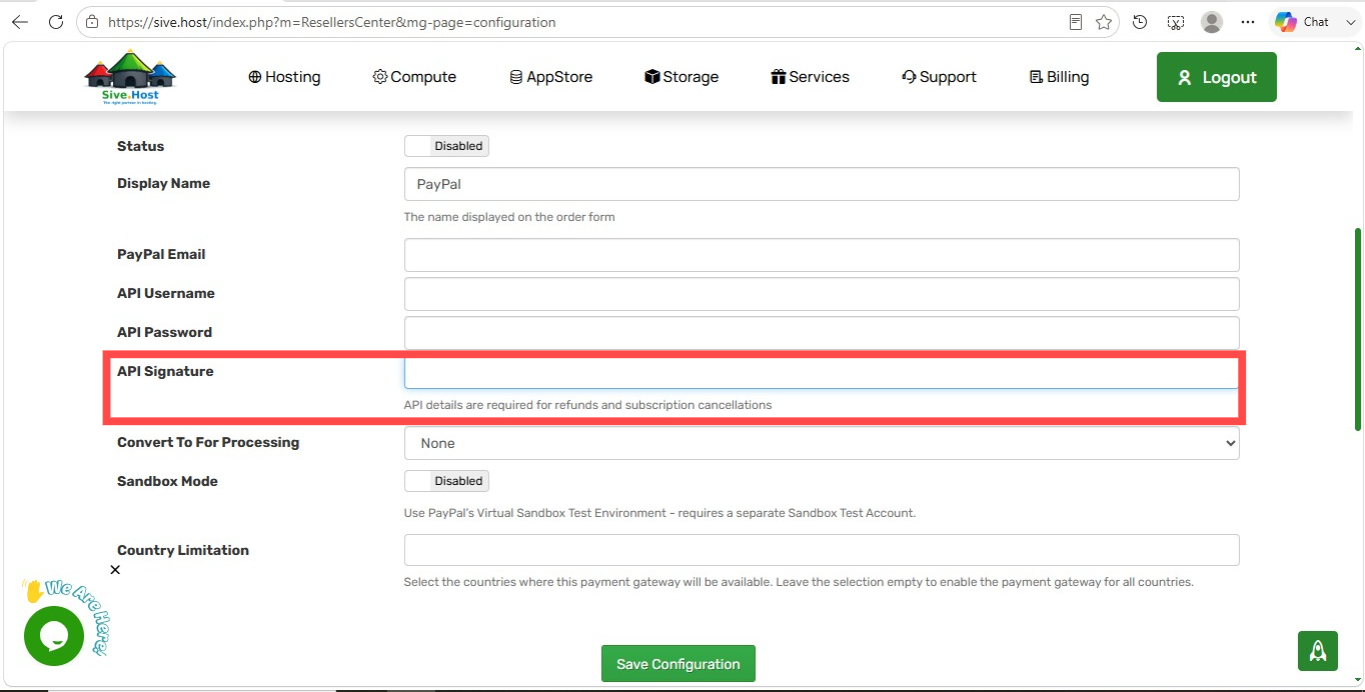
Purpose
The API Signature provides an additional layer of authentication for secure transactions.
Step 9: Configure "Convert To For Processing"
Locate the Convert To For Processing dropdown.
Default value:
NoneAction
Leave this as:
Noneunless you need all payments converted into another supported currency.
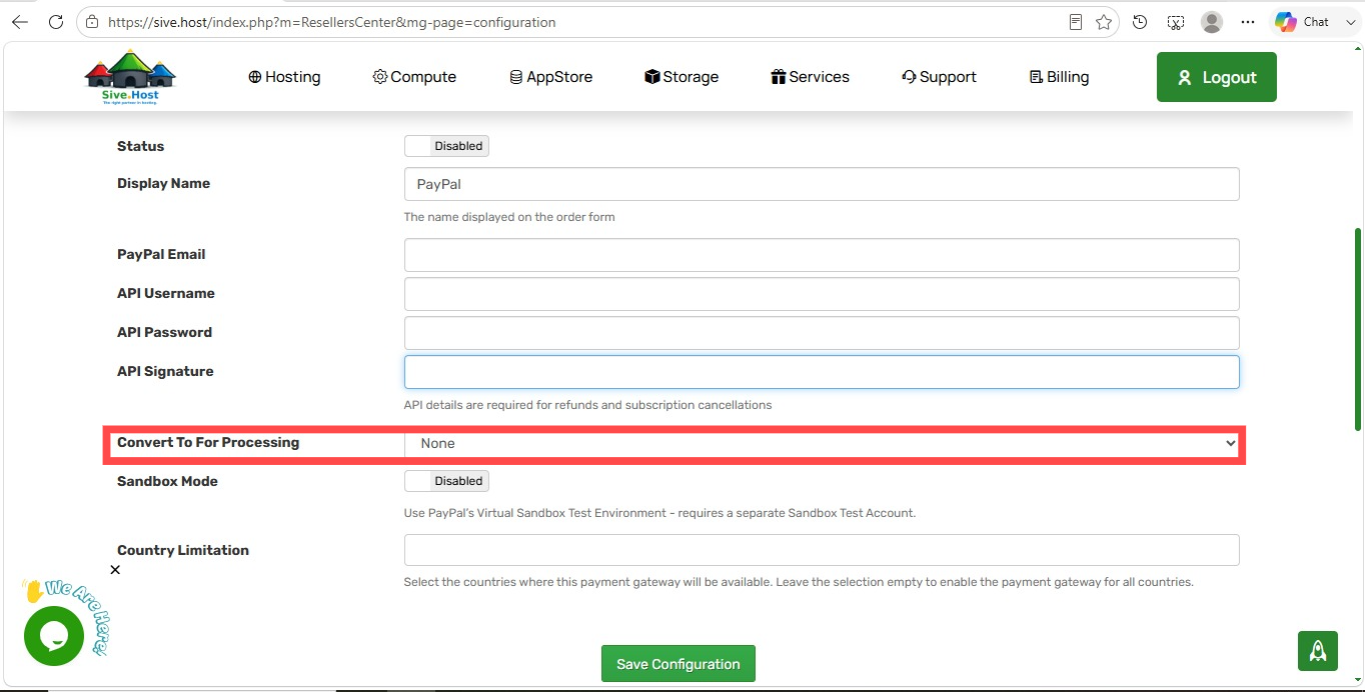
Purpose
This setting controls currency conversion during payment processing.
Step 10: Configure Sandbox Mode
Locate Sandbox Mode.
Current value:
DisabledWhen to Enable Sandbox
Enable Sandbox only if you want to test PayPal payments without using real money.
For a live production website:
Leave Sandbox Mode:
Disabled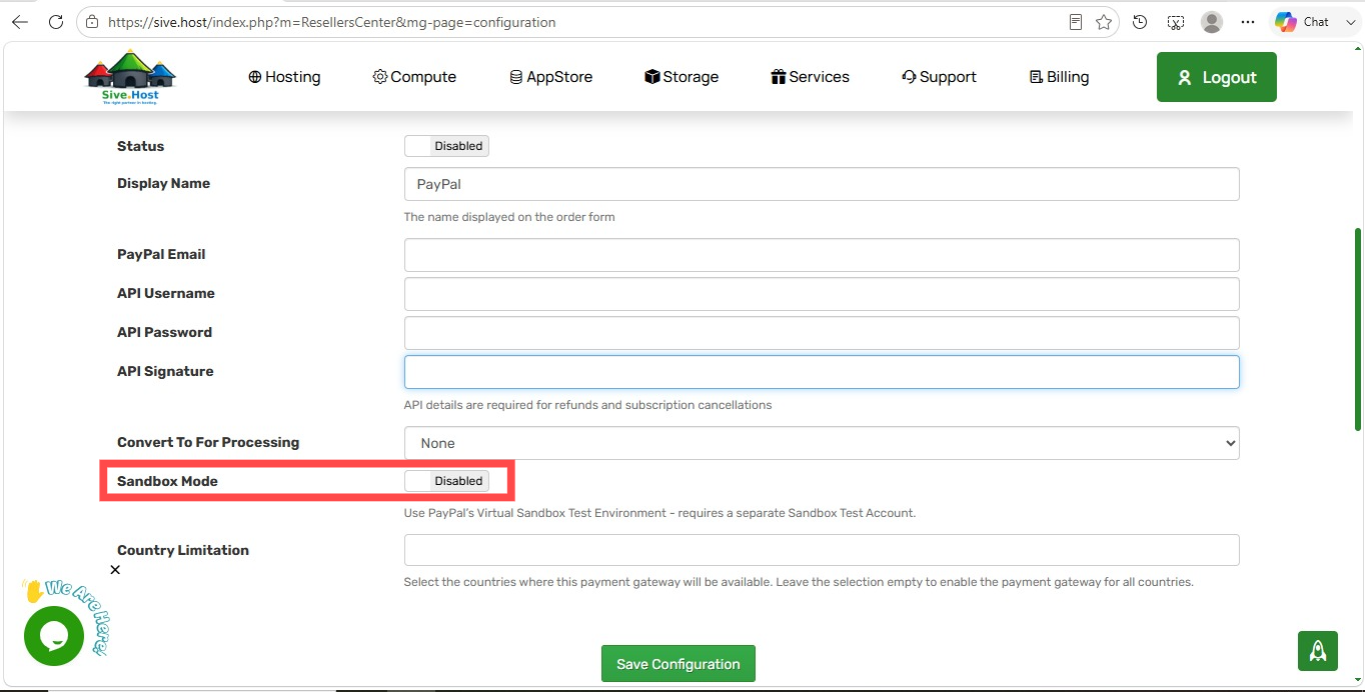
Purpose
Sandbox Mode connects PartnersHub to PayPal's testing environment.
Step 11: Configure Country Limitation
Locate the Country Limitation field.
Option 1
Leave the field empty.
This allows customers from all countries to use PayPal.
Option 2
Select specific countries.
Example:
South Africa Namibia Botswana.png)
Purpose
Limits PayPal availability to selected countries.
Step 12: Save the Configuration
After completing all required fields, click the green button:
Save Configuration.png)
Expected Result
A confirmation message indicates that the PayPal Payment Gateway has been successfully configured.
How to Obtain Your PayPal API Credentials
If you do not already have your API credentials:
-
Log in to your PayPal Business account.
-
Go to Account Settings.
-
Select API Access or Developer Settings.
-
Generate or view your:
-
API Username
-
API Password
-
API Signature
-
-
Copy each value into the corresponding fields in PartnersHub.
Best Practices
-
Use a verified PayPal Business account.
-
Keep your API credentials secure.
-
Use Sandbox Mode only for testing.
-
Perform a test transaction before accepting customer payments.
-
Review your PayPal account regularly for completed and pending payments.
Troubleshooting
PayPal does not appear during checkout
Possible causes:
-
The gateway is still Disabled.
-
The configuration was not saved.
-
Country restrictions prevent the payment option from being displayed.
Customers receive a PayPal error
Check that:
-
The PayPal Email address is correct.
-
The API Username, API Password, and API Signature are valid.
-
Sandbox Mode is disabled for live transactions.
-
Your PayPal Business account is active and verified.
Payments are not received
Verify that:
-
Payments are being sent to the correct PayPal email address.
-
The PayPal Business account is fully verified.
-
API credentials have been entered correctly.
-
There are no restrictions or limitations on the PayPal account.
Summary
By following these steps, you can successfully configure the PayPal Payment Gateway in Sive.Host PartnersHub. Once the gateway is enabled and your PayPal Business account details have been entered correctly, customers will be able to select PayPal during checkout and complete secure online payments using their PayPal balance or supported debit and credit cards.
-
