

How to Add a Domain in DirectAdmin
Objective
This guide explains how to add a new domain to your hosting account using the DirectAdmin Evolution control panel.
Prerequisites
Before adding a domain, ensure that:
-
You have an active DirectAdmin hosting account.
-
You have the DirectAdmin username and password.
-
The domain has already been registered.
-
The domain's nameservers are pointing to your hosting server (if required).
Step 1: Log in to DirectAdmin
-
Open your web browser.
- Enter your Username.
-
Enter your Password.
-
Click Login.
Expected Result
You will be redirected to the DirectAdmin Evolution Dashboard.
Step 2: Open the Account Manager
From the DirectAdmin Dashboard:
-
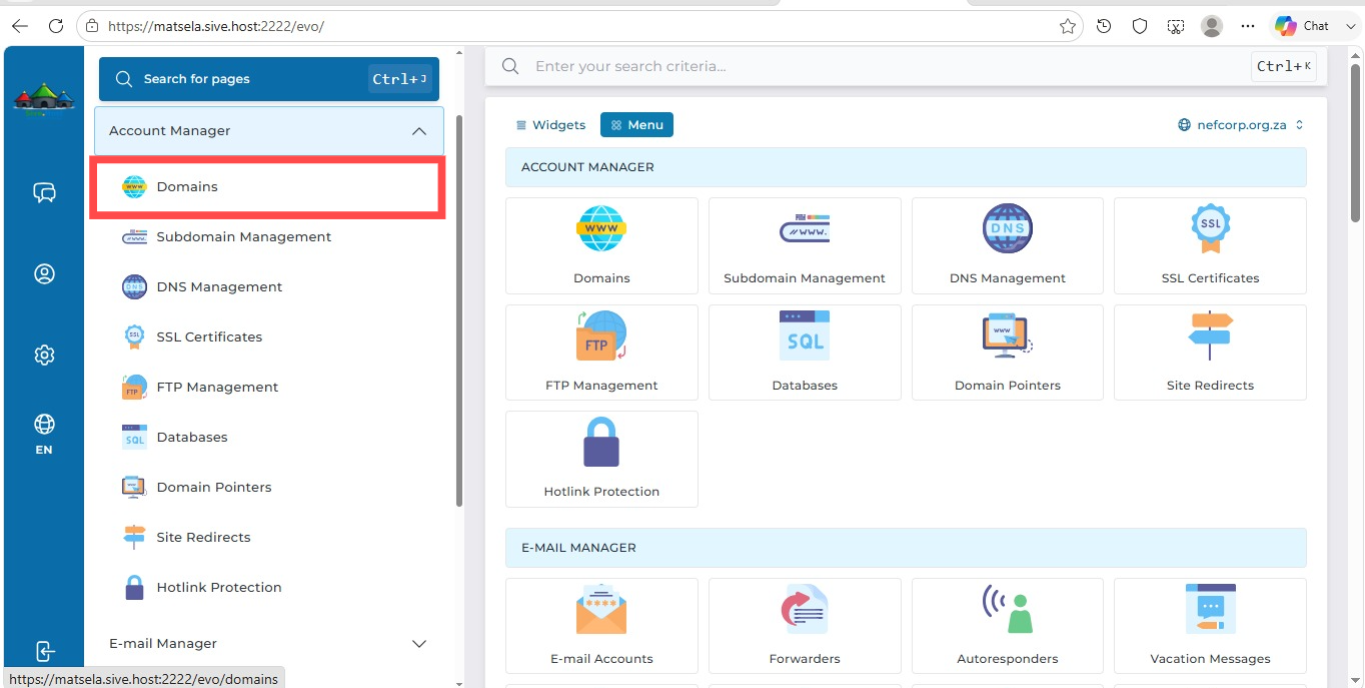
Locate the Account Manager section.
-
Click Domain Setup.
Purpose
The Domain Setup page allows you to manage all domains hosted on your account.
Step 3: Open the Add Domain Page
On the Domain Setup page:
-
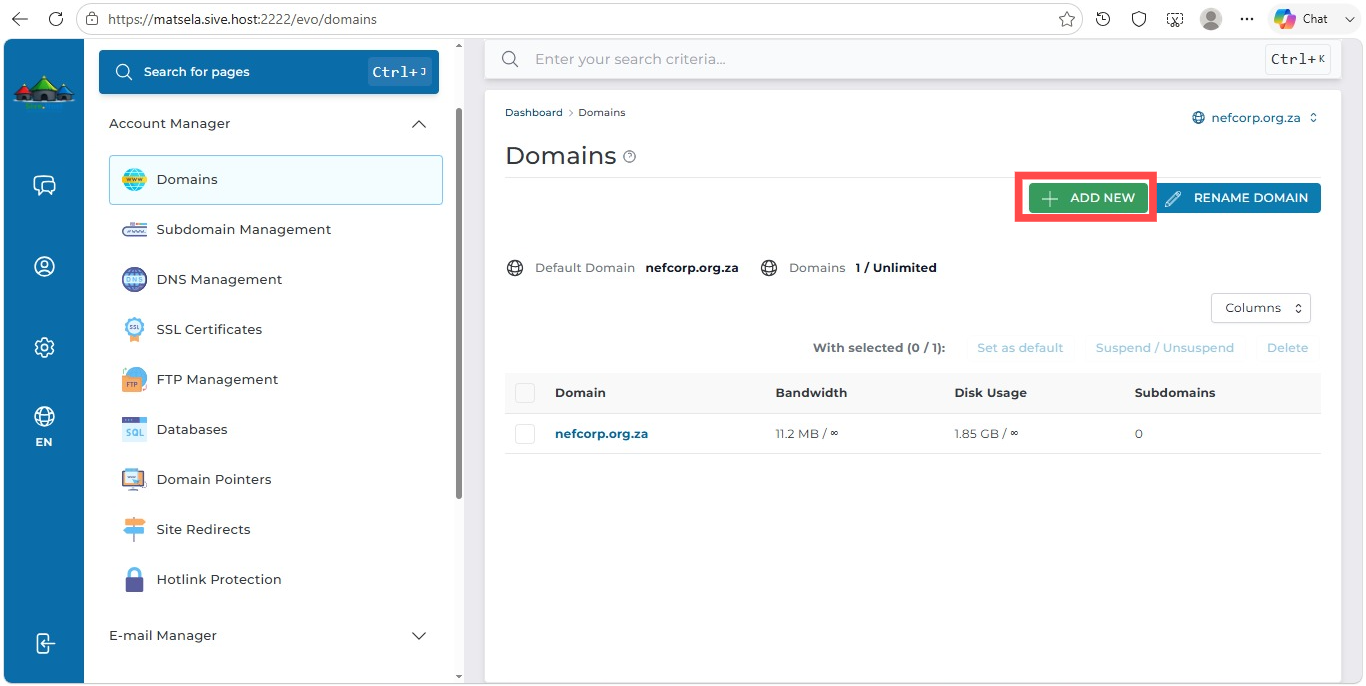
Click Add New.
Expected Result
The Add Domain form will open.
Step 4: Enter the Domain Name
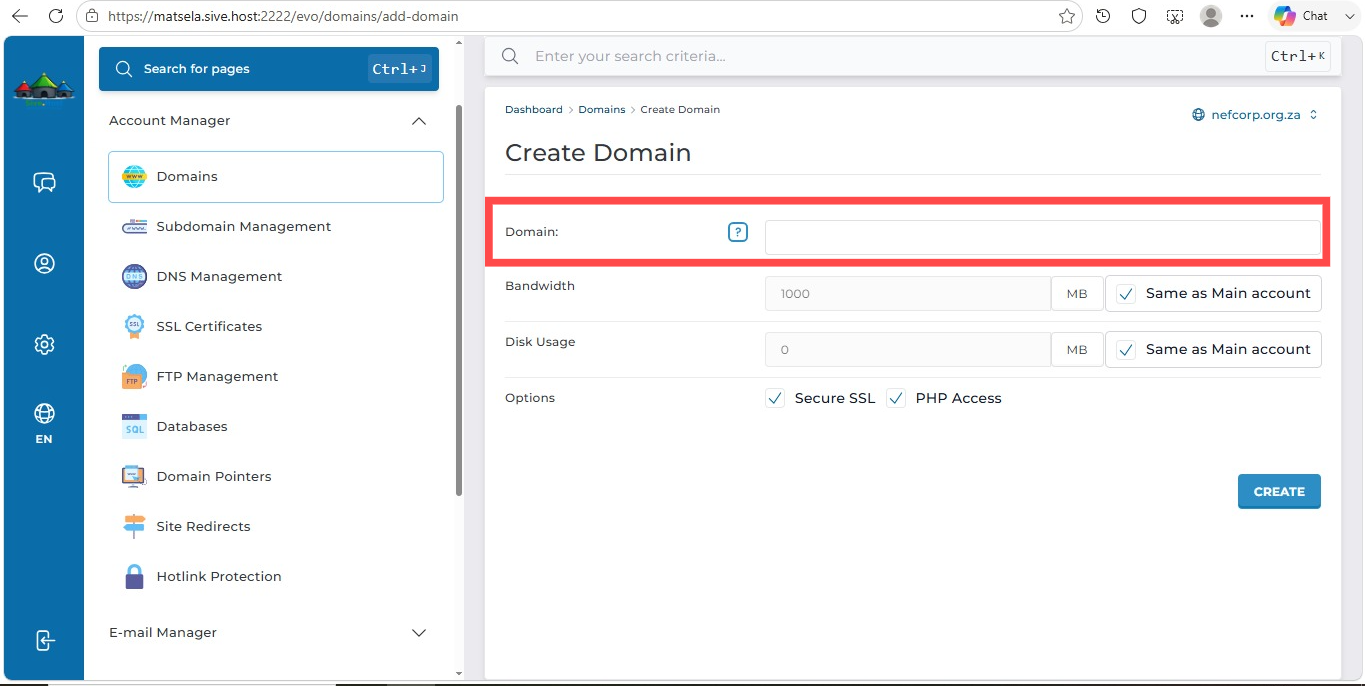
Locate the Domain Name field.
Type the domain you want to host.
ImportantDo not include:
https://
or
www.
Only enter the domain name.
Correct:
example.co.za
Incorrect:
https://example.co.za
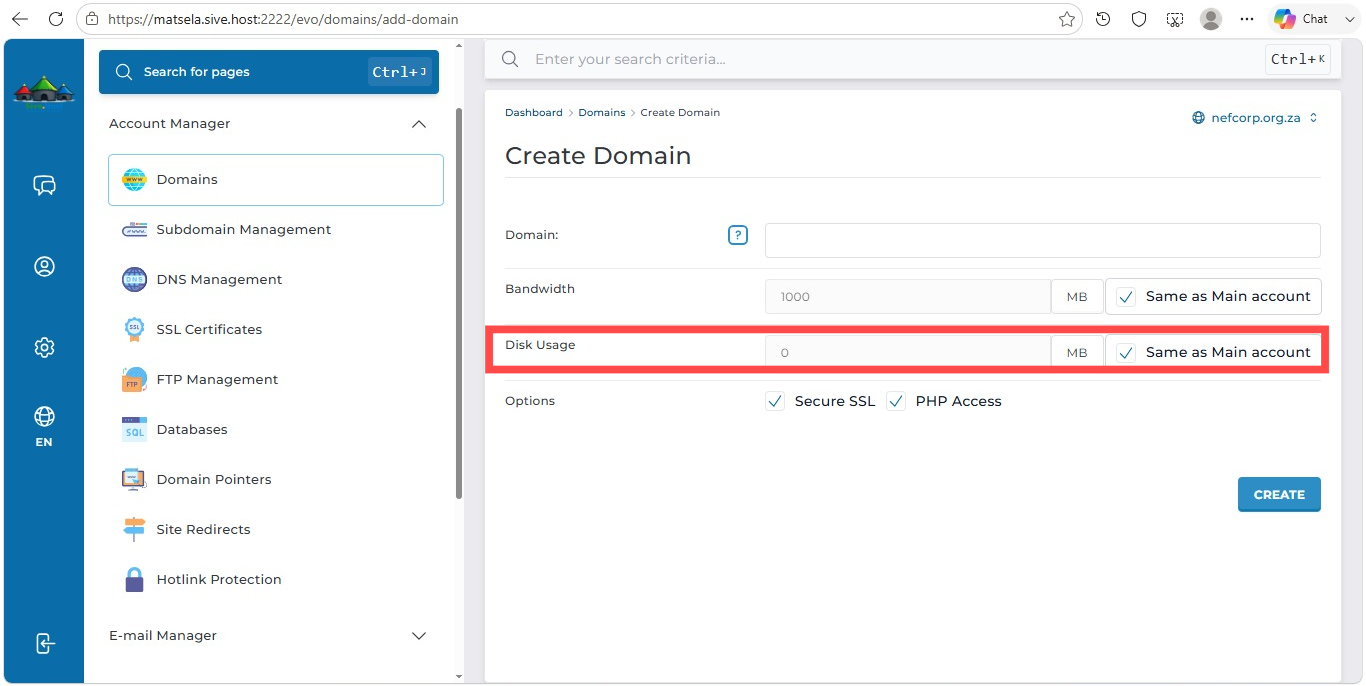
Step 5: Configure Domain Settings
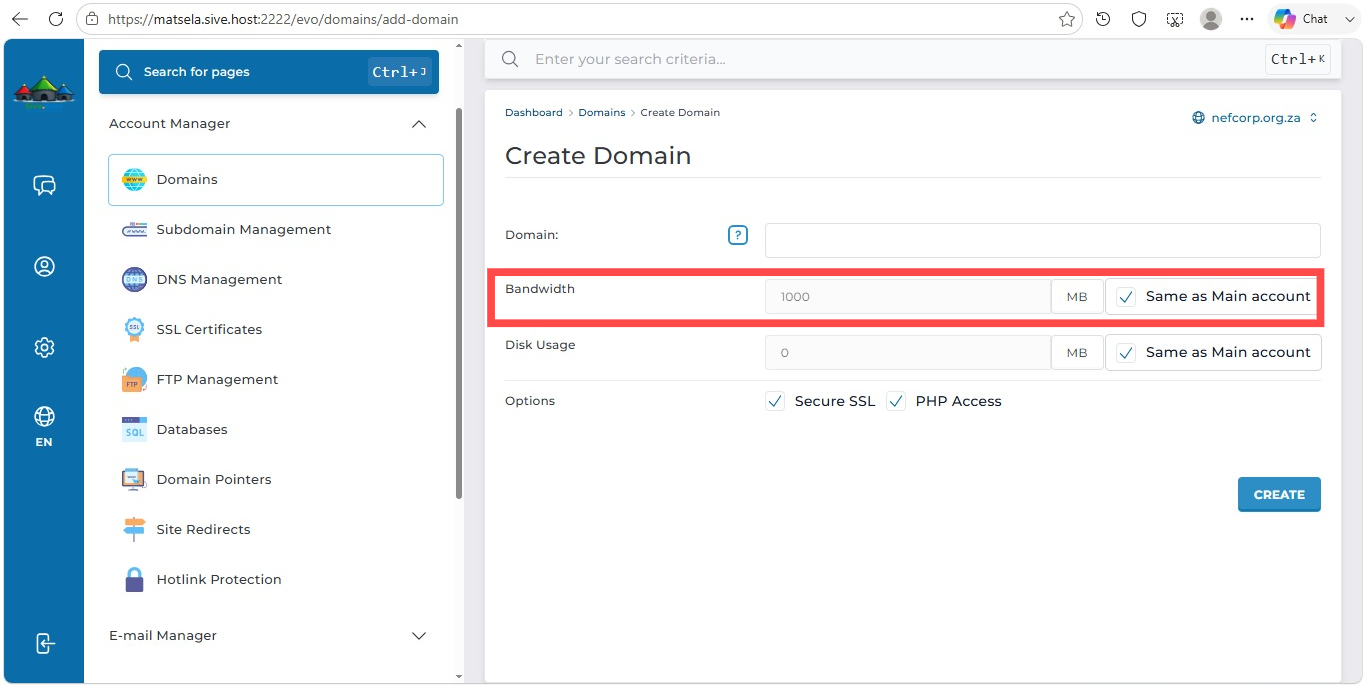
Depending on your hosting package, you may see additional options such as:
Bandwidth
Set the monthly bandwidth allocation.
Example:
Unlimited
or
100 GB
Disk Usage
Specify the amount of storage space allocated to the domain.
Example:
Unlimited
or
10 GB
SSL
Enable SSL if available.
This allows the website to use HTTPS securely.
Step 6: Create the Domain
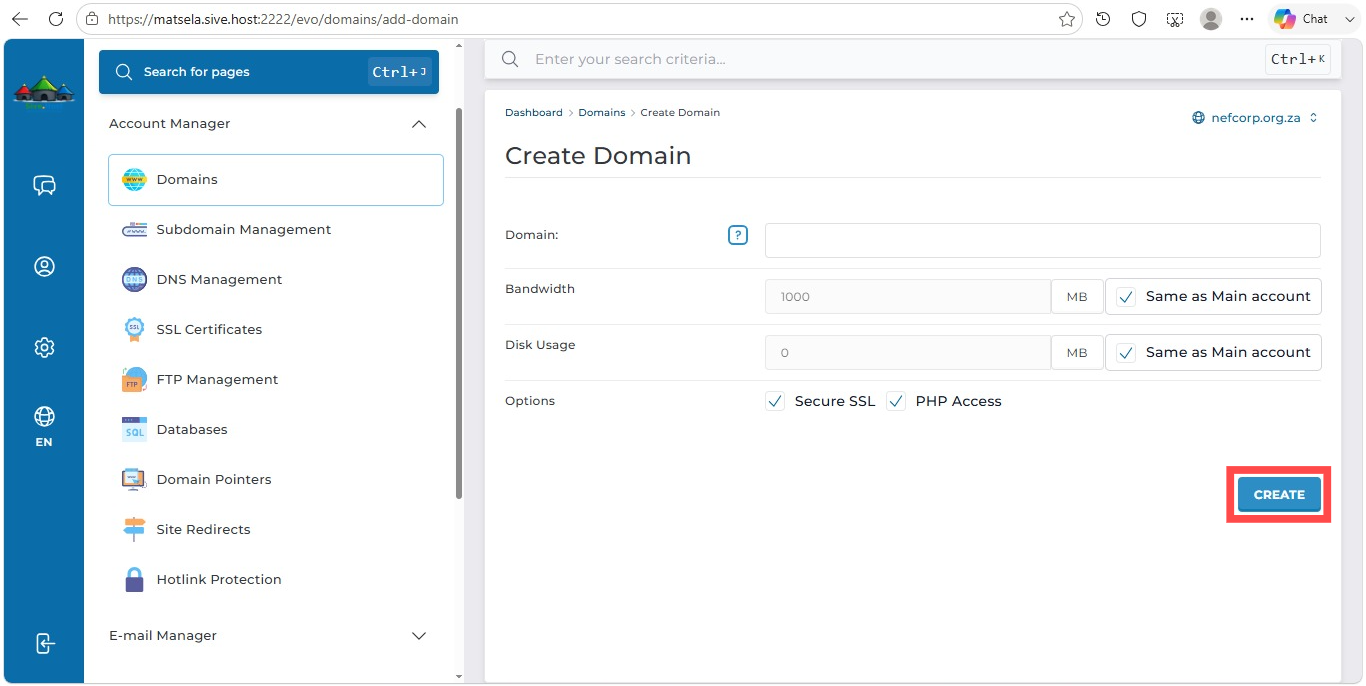
After confirming all settings:
Click
Create
or
Add Domain
Expected Result
DirectAdmin will create the domain and display a confirmation message.
Example:
Domain successfully created.
Step 7: Verify the Domain
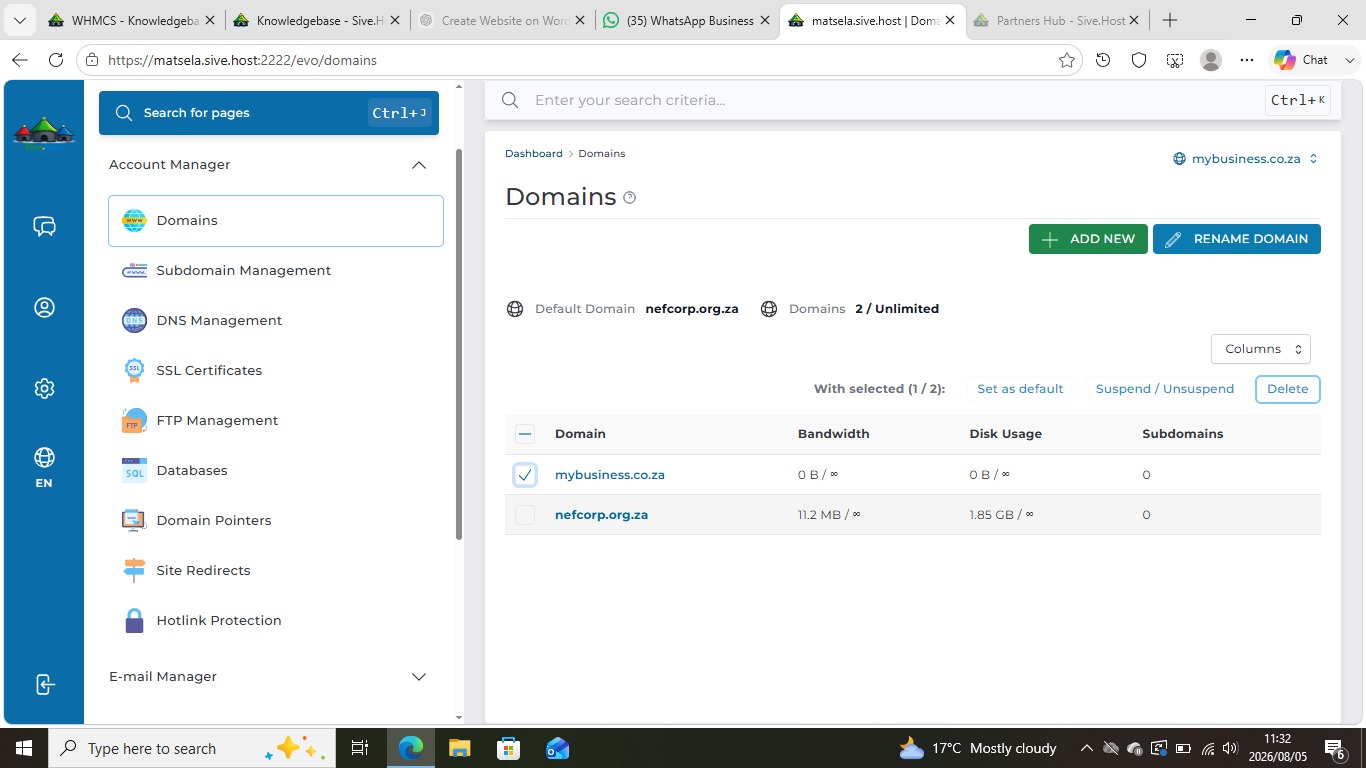
Return to Domain Setup.
You should now see the newly added domain listed with your existing domains.
Verify that:
-
The domain name is correct.
-
The status is Active.
Step 8: Test the Domain
Open your web browser.
Visit:
https://example.co.za
If DNS has propagated correctly, the website should load.
Troubleshooting
Domain does not open
Possible causes:
-
DNS propagation is still in progress.
-
Nameservers are incorrect.
-
Domain has not been registered.
-
SSL certificate has not been installed.
Domain is not listed
Ensure that:
-
You clicked Create after entering the domain.
-
Your hosting package allows multiple domains.
-
There are no typing errors in the domain name.
Best Practices
-
Verify the spelling of the domain before creating it.
-
Enable SSL to secure the website.
-
Test the website after adding the domain to confirm it is accessible.
-
Keep your domain registration and hosting details up to date.
Summary
By following these steps, you can successfully add a new domain to your DirectAdmin hosting account.
