

Connect Sive.Host to Claude AI
Connect your Sive.Host account to Claude so you can ask for help with your hosting, domains, websites, email, support requests and eligible servers in a normal conversation.
https://sh.sive.ai/mcpBefore you start
- You need an active eligible Sive.Host shared-hosting or VPS server product. Click to Grab one now.
- Your Claude account or organization must allow custom connectors. Availability and who may add a connector depend on the Claude plan and organization settings.
- Add the connection on claude.ai. Once connected to your account, it can also be available in supported Claude apps.
1. Generate your Sive.Host connection credentials
- Sign in to the Sive.Host Client Area.
- Open AI & API Access.
- Generate an API key and secret. Give it a recognisable name such as Claude.
- Copy the secret when it is shown and store it securely.
2. Add the Sive.Host connector
Individual Claude accounts
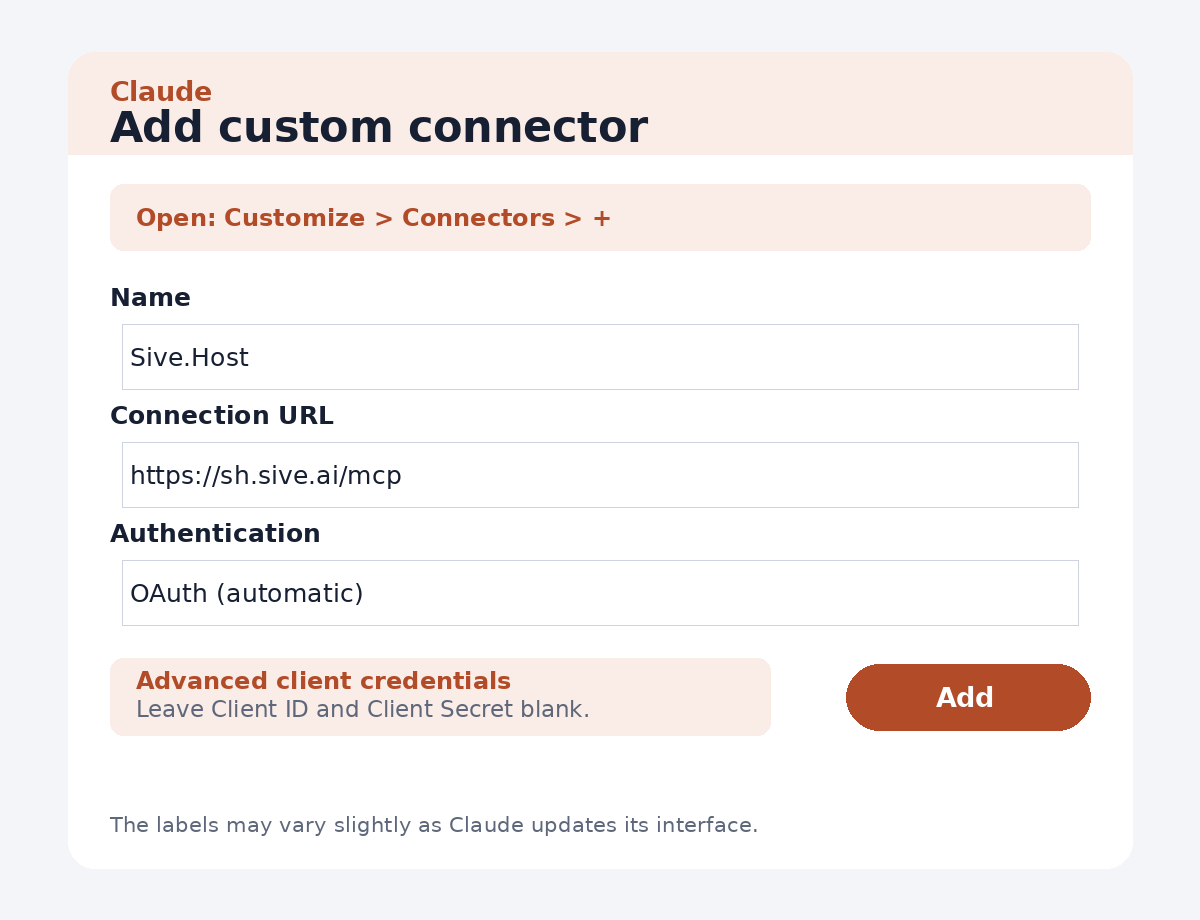
- Open Customize > Connectors.
- Select +, then Add custom connector.
- Name it Sive.Host.
- Enter
https://sh.sive.ai/mcpas the connector URL. - If Advanced settings offers OAuth Client ID and Client Secret fields, leave them empty.
- Select Add.
- Icon: https://sive.host/sh.png
Claude Team or Enterprise organizations
- An Owner or Primary Owner opens Organization settings > Connectors.
- Select Add > Custom > Web.
- Enter
https://sh.sive.ai/mcp, leave optional advanced client credentials empty and add the connector. - Each member then opens Customize > Connectors, finds Sive.Host and selects Connect.
3. Authorize your account
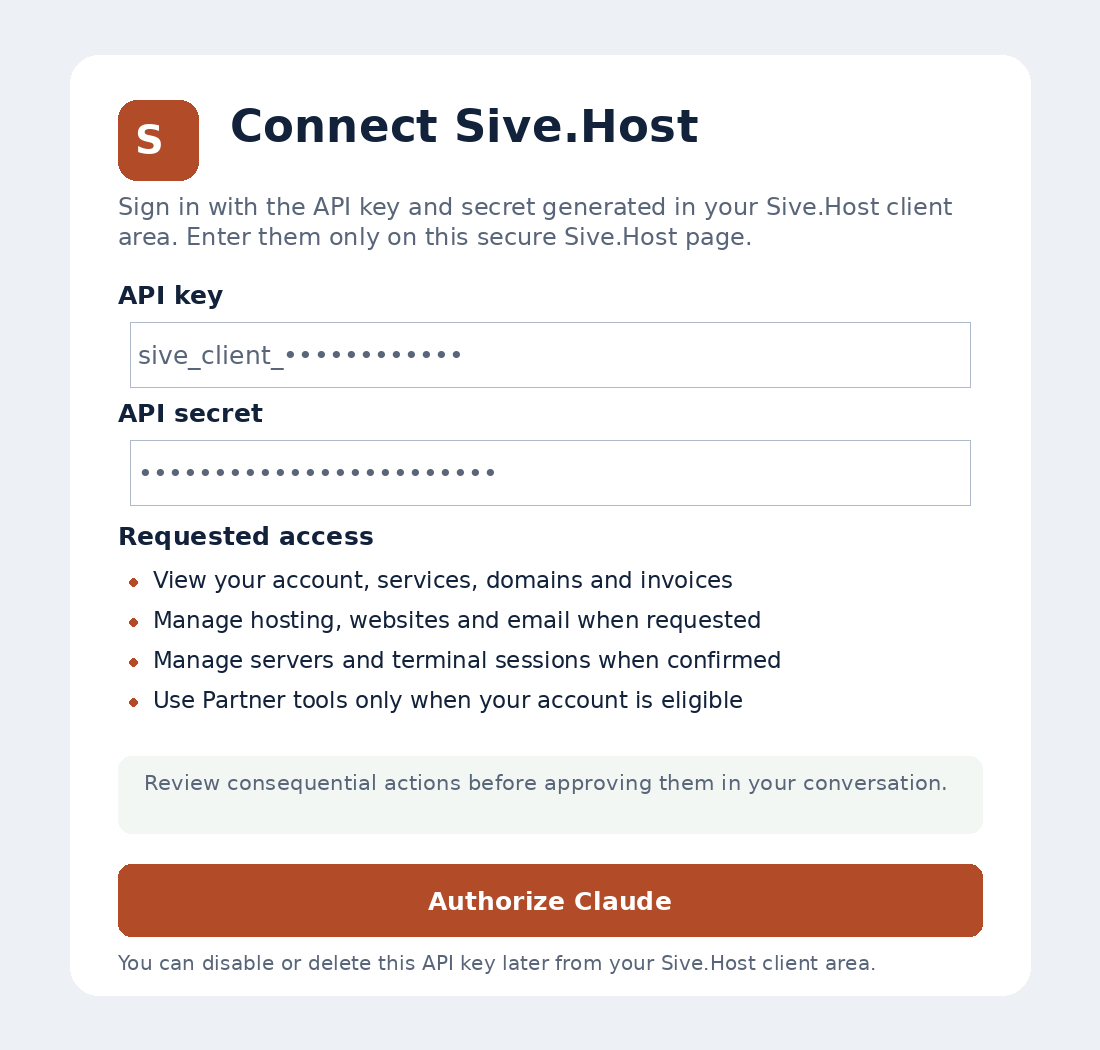
- Select Connect beside Sive.Host.
- Claude opens a secure page on
sh.sive.ai. - Enter the API key and secret generated in your Sive.Host Client Area.
- Review the requested access, then select Authorize Claude.
4. Enable Sive.Host in a conversation
- Start a new Claude conversation.
- Select the + button beside the message box, then Connectors.
- Enable Sive.Host for that conversation.
- Begin with a read-only test:
Using Sive.Host, how many active services do I have and what is my current credit balance?
Claude can read only the Sive.Host account authorized by that API key. Review every approval request carefully, especially purchases, deleting files, reinstalling a server, sending email or opening terminal access.
Useful things to ask
Investigate and repair a hacked WordPress website
Using Sive.Host, my WordPress website example.com appears to have been hacked. First inspect its recent access and error logs and the relevant website files. Explain the likely entry point and proposed repair. Back up every file before changing it, ask me before consequential changes, then verify the homepage and WordPress login and harden the same entry point against a repeat attack.
Sive.Host can securely retrieve bounded logs belonging to your domain even though the underlying server log files are outside your website directory. It can then use the website tools available to your owned hosting account. A severe account-wide or server-wide compromise may still need escalation to Sive.Host support.
Publish or repair a website
Using Sive.Host, publish this finished website to example.com. Back up the existing files first and verify the public HTTPS page before saying it is live.
Work with email
Using Sive.Host, show me the latest unread messages for accounts@example.com. Draft replies, but show me each From, To, subject and body before sending.
Manage a server
Using Sive.Host, check the health of my newest server and explain any storage, memory or CPU problem. Do not make changes until I approve them.
Domains, billing and support
Using Sive.Host, check whether example.co.za is available and show me the registration price. Do not purchase it yet.
Using Sive.Host, show my latest support ticket and tell me whether Sive.Host has replied.
Troubleshooting
- Claude could not register with the sign-in service: confirm the URL is exactly
https://sh.sive.ai/mcp. Remove the connector, add it again and leave optional Client ID and Client Secret fields empty. - The connector is present but unavailable in chat: use the + menu, open Connectors and enable Sive.Host for that conversation.
- Connection expired: open Customize > Connectors and reconnect Sive.Host.
- Additional permission required: reconnect Sive.Host and approve the requested access.
- Wrong account: remove or disconnect Sive.Host, then reconnect with the API key belonging to the intended Sive.Host account.
Disconnect or revoke access
You can disconnect or remove Sive.Host under Claude's Connectors settings. You can also disable or delete the API key under AI & API Access; this immediately prevents that key from being used again.
Interface labels can change as Claude is updated. The connection address and Sive.Host authorization process remain the same.

