

How to Create a Database in DirectAdmin
Introduction
A database is used to store website information such as content, user accounts, settings, and application data. Many web applications, including WordPress, Joomla, and Drupal, require a
database to function correctly.
This guide explains how to create a database in DirectAdmin.
Prerequisites
Before you begin, ensure that:
- You have access to your DirectAdmin account.
- You have your DirectAdmin username and password.
- Your hosting package allows you to create databases.
Step 1: Log in to DirectAdmin
- Open your DirectAdmin login page.
- Enter your username and password.
- Click Login.
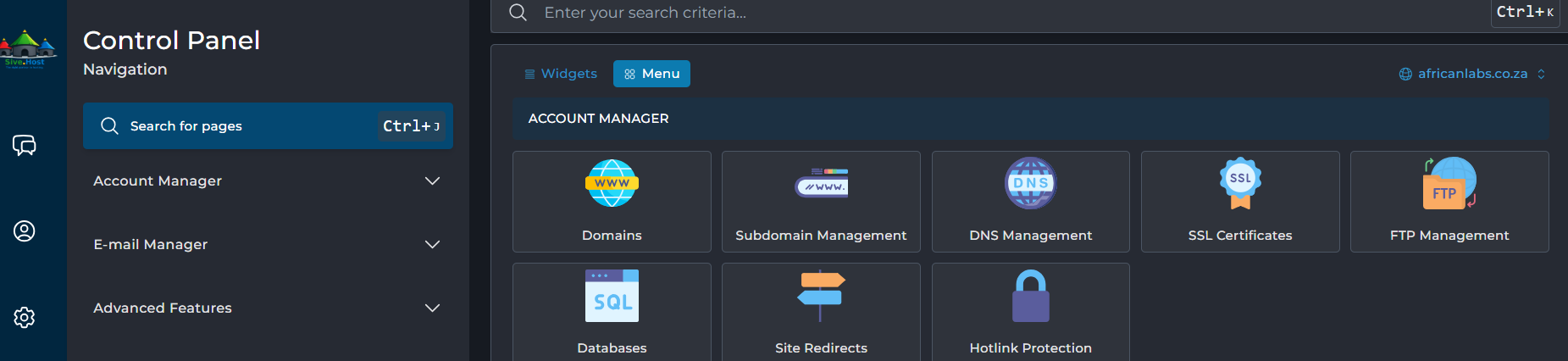
Step 2: Open the Databases Section
- From the DirectAdmin dashboard, locate the Account Manager section.
- Click Databases.
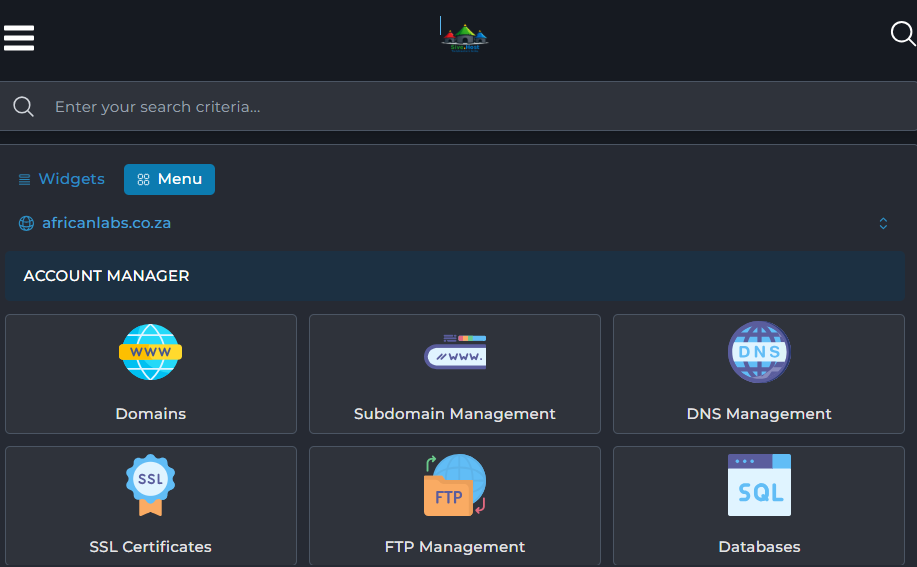
Step 3: Create a New Database
- Click Create New Database.
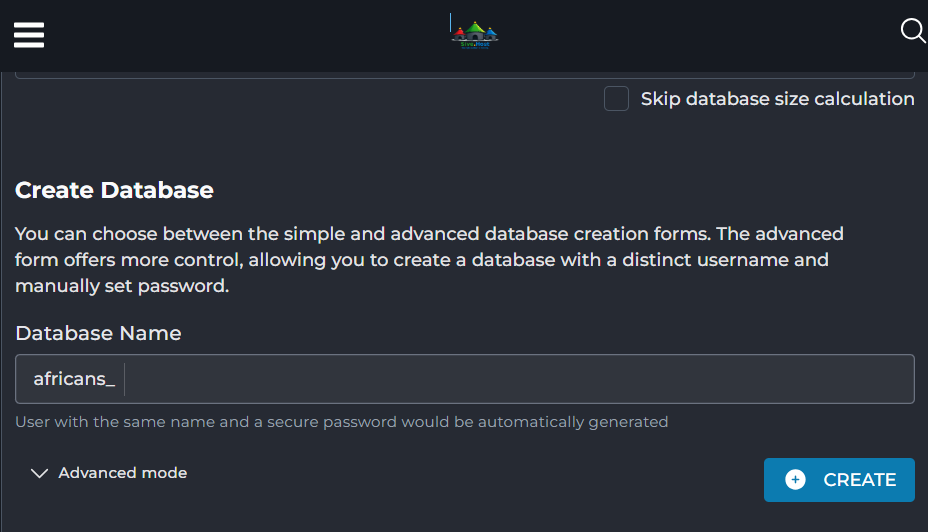
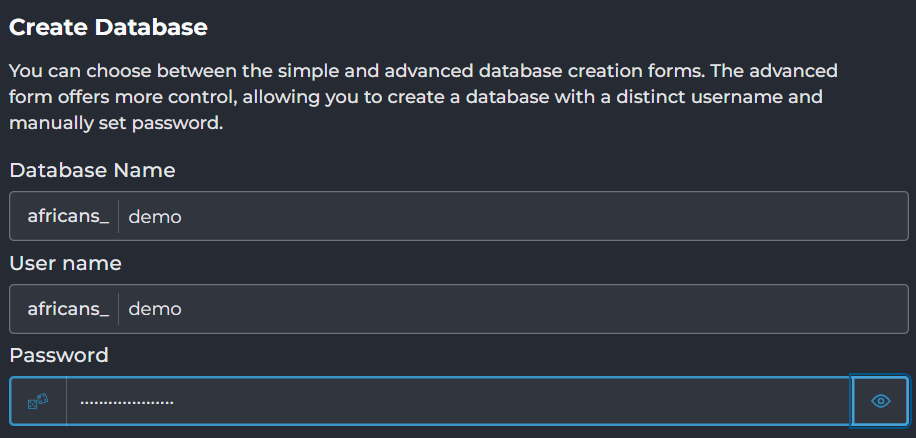
Step 4: Enter the Database Details
Enter the following information:
- Database Name (for example,
demo, which becomesafricans_demoif your account uses a prefix). - Database Username.
- Database Password (use a strong password or the password generator).
Review the details before proceeding.
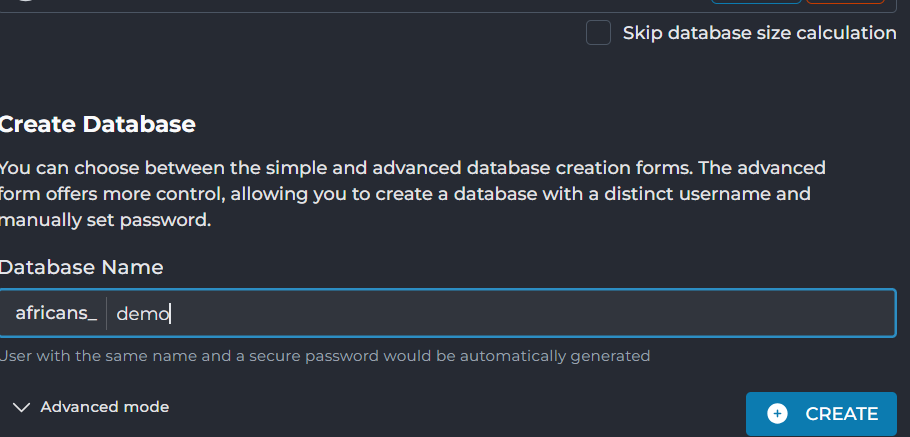
 Step 5: Create the Database
- Click Create.
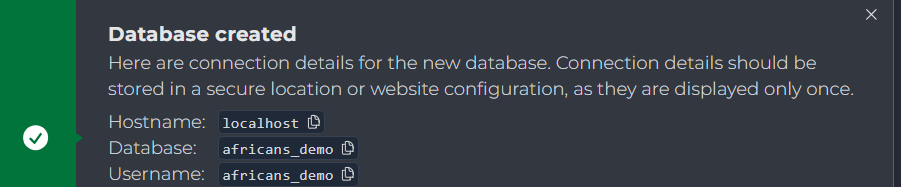
- Wait for the confirmation message indicating that the database has been created successfully.
Conclusion
You have successfully created a database in DirectAdmin. You can now use this database when installing applications such as WordPress or other software that requires a MySQL or MariaDB database. Store your database name, username, and password securely for future use.
