

How to Open a Support Ticket in PartnersHub
Purpose
This article explains how to open a support ticket in PartnersHub. Support tickets allow you to contact the support team for assistance with technical issues, billing enquiries, hosting services, domains, and other account-related requests.
Prerequisites
Before you begin, ensure that:
- You have access to the PartnersHub portal.
- You are logged in to your account.
- You have the necessary information about the issue you want to report.
Step 1: Locate the Support Menu
- Log in to the PartnersHub portal.
- From the top navigation bar, locate and click Support.
- From the drop-down menu, select Open New Ticket.
Figure 1: Locate the Support Menu
Image: 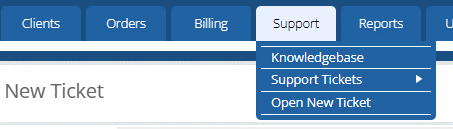
Step 2: Complete the Ticket Information
- Search for and select the client from the Client field.
- Verify or enter the client's:
- Name
- Email Address
- CC Recipients (optional)
- Enter a clear and descriptive Subject.
- Select the appropriate Department.
- Choose the appropriate Priority level.
Figure 2: Complete Ticket Information
Image: 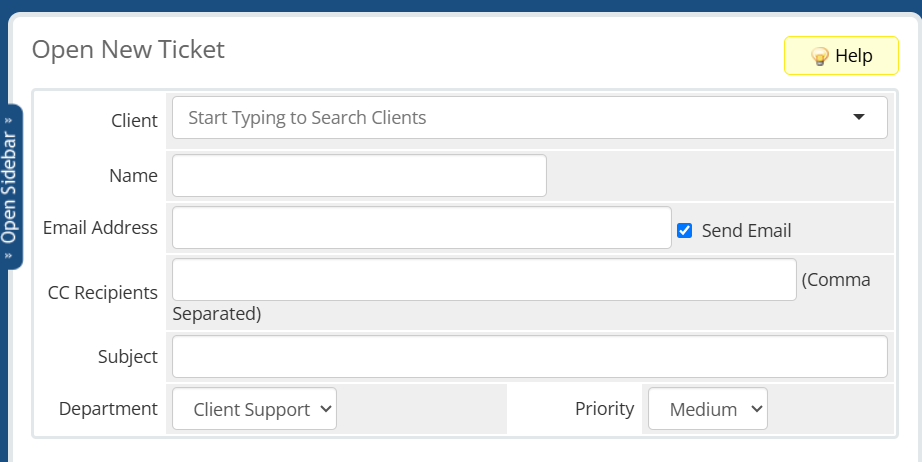
Step 3: Enter the Ticket Message
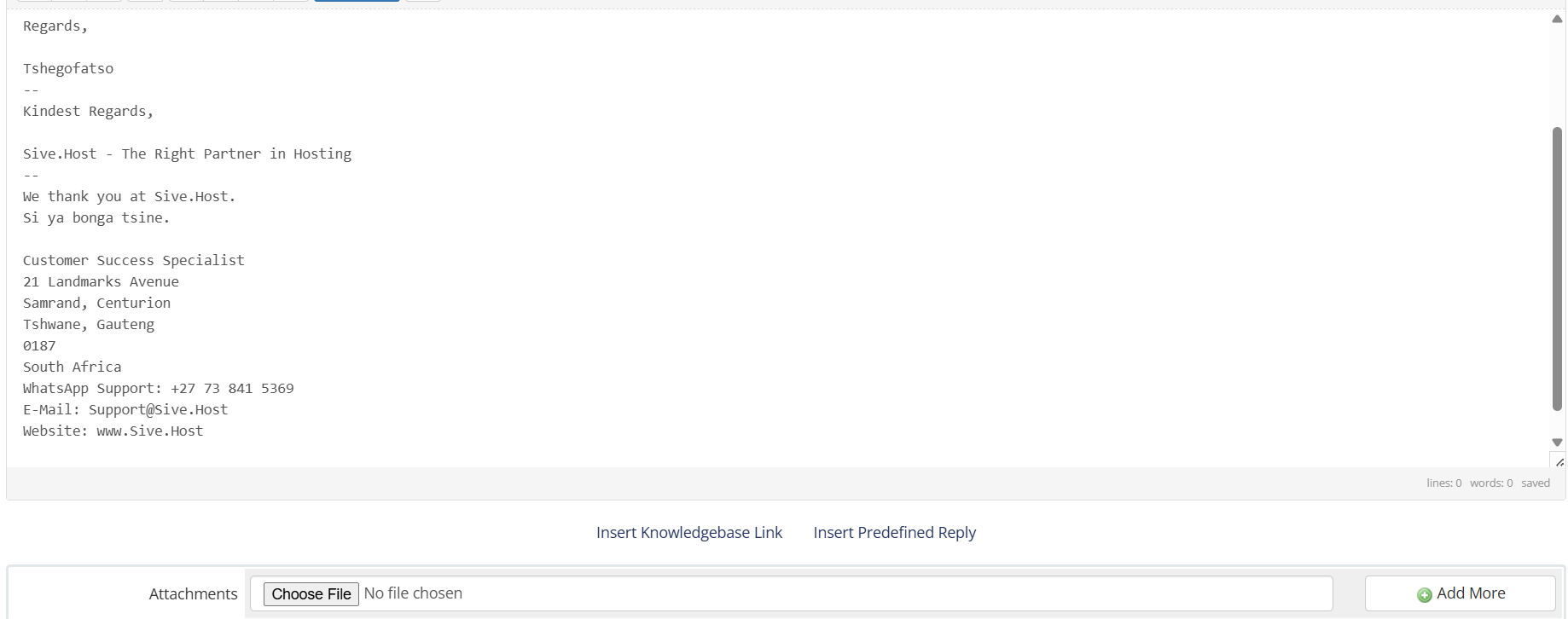
- In the message editor, type a detailed description of the issue or request.
- Include all relevant information that will help the support team understand and resolve the issue.
- If required, click Choose File to attach supporting documents or screenshots.
- Click Add More to attach additional files if necessary.
Figure 3: Enter the Ticket Message

Step 4: Preview and Submit the Ticket
- Click Preview to review the ticket details and ensure all information is accurate.
- If everything is correct, click Submit to send the ticket to the selected support department.
Figure 4: Preview and Submit Ticket
Image: 
Expected Result
The support ticket is successfully submitted and assigned a unique ticket ID. You can track its progress and communicate with the support team through the Support Tickets section.
Conclusion
You have successfully learned how to open a support ticket in PartnersHub. Providing complete and accurate information, along with any necessary attachments, helps the support team resolve your request as quickly as possible.
